A few months ago, I noticed I was approaching my bandwidth limits on my hosting account. Switching hosting providers is a pain, so I decided to move some high-bandwidth graphics to Amazon S3, where the bandwidth is cheap and unlimited. All was well until I realized that Google was returning search results pointing to my bucket on s3.amazonaws.com instead of carltonbale.com. Luckily, AmazonAWS has a work-around. You can use your own domain name in an Amazon S3 bucket. Here are the instructions on how to do it, from beginning to end.
Introductory Steps for new Amazon S3 Users:
- First of all, obviously, you need your own domain name and your own Amazon S3 account
- Secondly, you need a way to create/manage Amazon S3 buckets, so you’ll need to install a client on your PC.
- I currently use the the CyberDuck file transfer client. I’ve also used the used the paid app Bucket Explorer and the S3 Organizer add-on for Mozilla Firefox. There are many options available.
- Install your the file transfer application of choice and configure it by entering your AmazonAWS Access Key and Secret Key
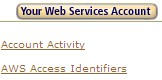
- These are available by going to http://aws.amazon.com, mousing-over the “Your Web Services Account” in the upper right-hand corner, and selecting “AWS Access Identifiers“
How to Alias your Subdomain to an Amazon S3 Bucket:
- Identify the exact domain name you want to forward to Amazon S3. S3 is not a web server, so I would not recommend forwarding your entire domain there, but rather a sub-domain. The sub-domain I’m going to use is the actual one I setup: s3.carltonbale.com
- Create a new “bucket” (a.k.a. folder) by clicking the “create folder/bucket” icon. Name the bucket exactly what your sub-domain name is.
- Example bucket name: s3.carltonbale.com
- Note: you must use a unique bucket name; you won’t be able to create bucket if the name is already being used by someone else, even if in another separate account.
- Now comes the tricky part: modifying your DNS server settings. The procedures on how to do this vary by host and software system, but are the general steps:
- Logon to your web host control panel and select “Manage DNS Server Settings” or similar
- Create a new CNAME entry for your domain. For my example of s3.carltonbale.com, the entry was:
- Name: s3
- Type: CNAME
- Value: s3.amazonaws.com.
- (If you are an European users, use s3-external-3.amazonaws.com. instead)
- And yes, the dot at the end of “s3.amazonaws.com.” is correct, at least for me. Look at your other entries to figure out what your should enter.
- Now comes the hardest part: waiting. It took about 2 hours for my subdomain to be recognized by AmazonAWS.
- Open the subdomain name in your browser. You should now be able to access your files through any of 3 urls:
- subdomain.domain.com (as long as the full bucket name is the same as the full subdomain name i.e. mysubdomain.mydomain.com, it is not necessary to specify the bucket name again at the end of the url)
- your_bucket_name.s3.amazonaws.com (i.e. mysubdomain.mydomain.com.s3.amazonaws.com)
- s3.amazonaws.com/your_bucket_name (i.e. s3.amazonaws.com/mysubdomain.mydomain.com)
Final Steps
- You’ll need to set permissions on your bucket and the files within using your favorite bucket management tool. I recommend setting the bucket permission to “full control by owner” only and setting the permissions of the files within the bucket to “full control by owner, read access for everyone”. This will prevent people from being able to browse/list the files in your bucket.
- If you don’t want Google (or Google Images) to index the files in your subdomain, create a file named robots.txt containing the following and copy it into your bucket:
User-agent: *
Disallow: /
That’s it, my start-to-finish guide on how to use your own domain name with Amazon S3. If I missed something or if something isn’t clear, let me know in the comments and I’ll fix it.
Hi,
Thanks for specifying Bucket Explorer tool in your very good article to help users of Amazon S3 a lot.
I am one of the developer team member, and we always well come the users feedback.
Bucket Explorer provides an easy and complete GUI to implement all the functionality of Amazon S3, Cloud Front,SNS and Import-Export service.
Use can perform Multipart-Upload and resume it,Multipart-Download, host your Bucket as S3 website and many more..
http://www.bucketexplorer.com/
Thank you!
Thanks dude, that’s exactly the info I was looking for!
It worked great
OK having problems getting this to work right.
Trying to get assets.everythingfurniture.com to point to my bucket “everythingfurniture” and path to buckets under that as well.
Is it possible? I did the cname thing and it keeps saying no such bucket exists. So I tried setting cname to everythingfurniture.everythingfurniture.com to point to s3.amazonaws.com since that is my bucket trying to access
still get message saying
NoSuchBucketThe specified bucket does not exist
everythingfurniture.everythingfurniture.com
DA7B459FDFDD58D1
assets.everythingfurniture.com also points to amazon and I get this message…
NoSuchBucketThe specified bucket does not exist
assets.everythingfurniture.com
Any suggestions?
@Scott
You need to find out what your full asset address is first.
Example..
everythingfurniture.s3.amazonaws.com
The bucket tool will give you the fool address, also bare in mind, the UK and US versions are different.
* Name: assets
* Type: CNAME
* Value: s3.amazonaws.com.
* (If you are an European users, use s3-external-3.amazonaws.com. instead)
Thats it!
http://assets.everythingfurniture.com/
Hi,
I’ve found that the index.html wasn’t displaying, instead XML was rendered to the screen. So I changed my CNAME mapping to this instead:
cdn CNAME cdn.mattauckland.co.uk.s3-website-eu-west-1.amazonaws.com.
This is where the subdomain and bucket is cdn.mattauckland.co.uk.
I don’t use CloudFront at the moment, as I want to skip the additional cost until I know what I’m paying each month. As you guest I’m new to S3, and this will be a trial as I’m looking to spread the load between S3 and my dedicated server.
After making the CNAME change, the index page seems to work just fine.
Thanks Matt. This is great information.
Hi, got a question. Has anyone here used AWS CloudFront. I’m thinking of hooking my bucket into CloudFront, but don’t know if I need to change my DNS record to the CloudFront entry or leave it as it is.
In an update to my question, I now use CloudFront on my site for serving static content. Along with Route 53 it greatly speeds up my sites load time. A live example is http://djbook.co where content is served on a combination of S3 bucket, CloudFront (for static images like logos and such, plus CSS files), and Route 53 for DNS.
Thank you just what I needed to know. Appreciate the detailed instructions.
Many thanks! Saved my hide.
How can I fix a cname using a load balancer?, whats the easier way to configure a subdomain, using a load balancer or a s3 bucket?
This was a great explanation, thank you, but you made a mistake. I was going to show this example to a customer, but he won’t understand now because, you refer to your domain as s3.carltonbale.com, yet your example (5.1) says subdomain.domain.com. (It should have said subdomain.carltonbale.com.)
Thanks anyway. I’ll search for another example somewhere else. Sincerely yours..
Wow, that’s a lame reason at best.
Hi This is a very useful article. You’re discussing about 3 urls:
1 .subdomain.domain.com (as long as the bucket name is the same as the full subdomain name, it is not necessary to specify the bucket name again at the end of the url)
2. your_bucket_name.s3.amazonaws.com
3. s3.amazonaws.com/your_bucket_name
Is there a way to restrict direct access by the world to 2 and 3 urls?
Thank you.
By chance does anyone have a solution to Man’s block question?
Great! I was having the same problem as Scott up there in the comments.
My mistake was to create the bucket with the name “mybucket”.
The correct way is to create the bucket with the name “mybucket.mydomain.com”.
And then, create the cname as:
mybucket -> s3.amazonaws.com
I’ve also introduced AWS Cloudfront as a CDN to cache my static content on the website, content like images used in the design that don’t change that often.
Made a big difference to website load times.
I also used AWS S3 bucket for a Listen Again web app I built for a local radio station. Each radio show automatically recorded is now uploaded to S3, and then Cloudfront handles the CDN from there. Saves on storage costs, and makes the play back/download of MP3’s that much quicker.
I’m now using AWS Cloudfront as well for a Content Distribution Network. The content gets auto-populated from web server using origin push from the WordPress caching plugin WP Super Cache. So users interact with WordPress as they normally would to upload pictures and files, and all static content is auto-populated to AWS CloudFront CDN. Super simple.
Thanks for this excellent tutorial.
Thank you for your helpful post. how does this affect the https certificate from the original site? Does the certificate cover the images hosted on S3 funneled through the subdomain? https seems to be the direction we need to go to have respect for our site. I had it working but the images off site threw up an unsafe warning. Better to not have encryption than to have that warning flash up to users. Any thoughts?
No, your certificate doesn’t carry over to S3.
Because I also serve my site as https completely (podbox.me), including static files like js and images, as well as audio files, I now use CloudFront CDN to distribute my S3 content.
CloudFront supports secure and non-secure connections, which solves that problem for me. Now my whole site is secure, and fast.
I hope that helps.
I have a wildcard SSL certificate for my domain. Is there a way I can use the alias like `https://sub.domain.com/xyz` ??
It gives me this error: Your connection is not private
I think your best option is to use the Amazon CloudFront version of S3 and use the SSL certificate it generates for itself. I’m not familiar with how to apply your wildcard cert to an S3 bucket.
Hi.. thanks for the information ,
Now I can access my s3 objects by subdomain.
Only problem now is I am not able to access the file with HTTPS it is only accessing like “http://mysubdomain.com/fileName”
I want to access it like
“https://mysubdomain.com/fileName”
Is any workaround to do this.. I found we can add cloudfront distribution for this to redirect http to https by adding existing ssl present in ACM,, but need proper steps to implement this.