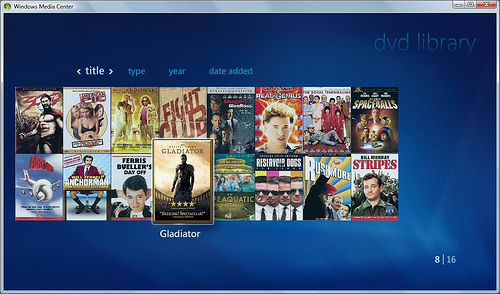
 Windows Media Center can automatically download the metadata (cover art, movie name, cast, plot summary, etc.) for DVDs. If you place a DVD in your drive, this occurs automatically. However, if you backup your DVDs to a server and access the moive via Windows Media Center, this data is not available. But there is a work-around and it involves creating a DVDID.XML file when you back-up the DVD to your media server. Here’s how you do it.
The easiest way to do this is to use My DVD Settings, a program created by Gelano over at TheGreenButton forums. Unfortunately, Gelano and his program have both disappeared. Fortunately, this software is still available from an alternative location: my_dvd_settings.rar.
You’ll need to download, install, run My DVD Settings, put the DVD in your optical drive, and have My DVD Settings create the XML data. Finally, save the resulting xml file to the folder containing the movie backup. When you are finished creating/coping all of the files, your folder structure will look like this:
Minority Report (parent folder for movie)
Minority Reportfolder.jpg (not necessary, but I like to manually save a cover art picture to the directory)
Minority ReportMINORITY_REPORT.dvdid.xml (metadata file)
Minority ReportVIDEO_TS (*.ifo, *.bup, *.vob files are in this sub-directory, created using DVD Fab, Slysoft, etc.)
Using this xml file, Windows Media Center will connect to the AMG library and download all of the available details on the movie.
Note 1: If you use DVD Profiler to catalog your movie collection, My DVD Settings can the DVD Profiler data to create the dvdid.xml file. Alternatively, you can go to dvdxml.com and search for and download the XML file.
Note 2: You’ll need to enable DVD Library in Vista to access this feature. Once active, go to DVD Library and add the folder containing your backed-up movies. You can also install the MyMovies Media Center plug-in.
How is the DVDID.XML File Created?
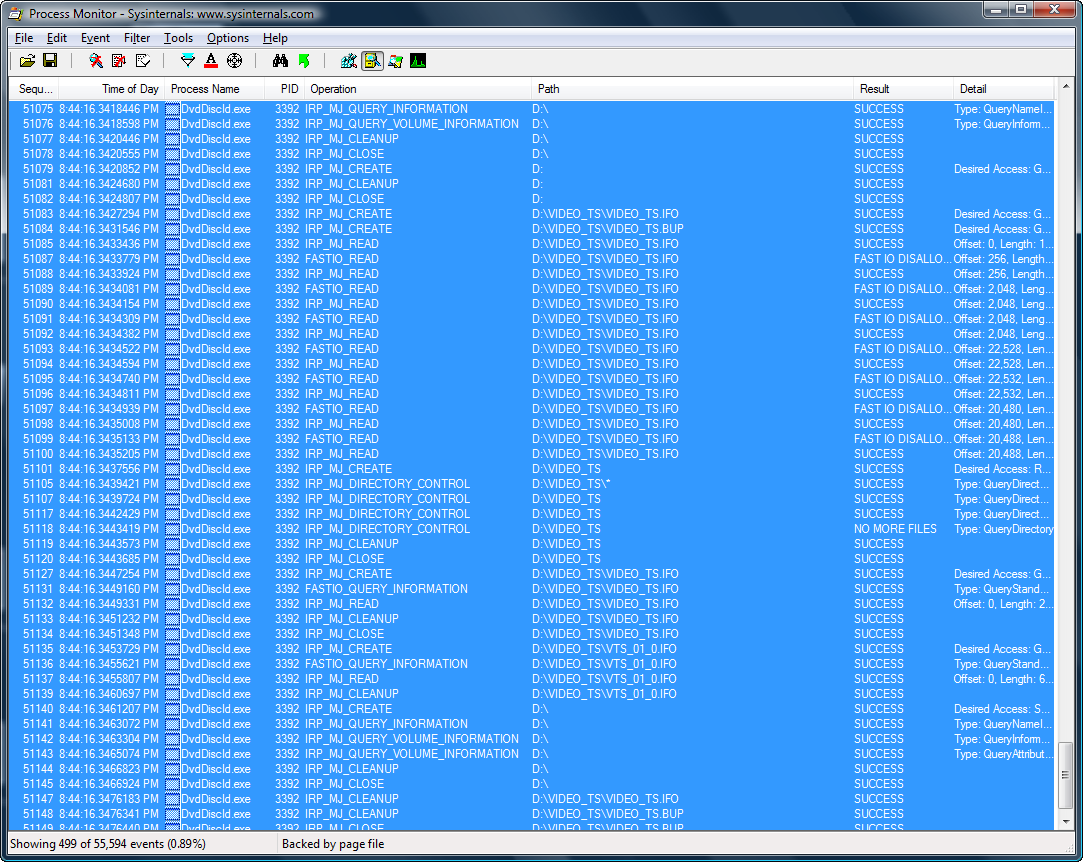
I really wish the software I used to backup my movies would also create the DVDID.xml file. Unfortunately, there is very little documentation on how this file is generated. I did quite a bit of reading and some investigation using Process Monitor and have some preliminary details. The dvdid is a CRC64 number generated by scanning the *.IFO and *.BUP files in the VIDEO_TS folder, combining that with the VOLUME_ID from the DVD disk itself. The inclusion of the VOLUME_ID is what prevents Windows Media Center from being able to automatically generate this information for DVD that are backed-up to a media server; there is no VOLUME_ID for the individual folders.
Once this process is fully understood, it should be possible for programs like DVD Fab and Slysoft CloneDVD to create these files when the DVD is being backed-up. This would eliminate the need to use the additional program (My DVD Settings) all together. Here’s hoping for inclusion in an upcoming release!
Update: I now recommend using the MyMovies Collection Management client to generate all images and metadata. Just be sure to store each movie in it’s own folder. https://MyMovies.dk/
Update: The version 5 of DVDFab Decrypter supports the automatic creation of dvdid.xml files, although I still think MyMovies is a better option.
Chris Key contacted me to let me know of an open source program he created to read DVDIDs. The executable and source code are available here:
http://www.srcf.ucam.org/~cjk32/dvdid/
My Movies has been working hard on WHS integration, and doing so their background monitoring service actually auto-populates this information as well, which is quite nice.
If only I can get WMC to play my MKV files (that are indexed like DVDs, and show up in my DVD Library). They play in when going directly to them in the Videos section – but I want them in my DVD Library. 🙂
We started a new website to generate DVDID.XML files. We don’t have a huge database yet, but every dvdid uploaded helps. Website is: http://mcedvd.com
Or you could just use the existing database at http://dvdxml.com/
Do you know of a current link that I could use to download “DVD Library Manager”?
All of the links to this great looking “free” program seem to be broken.
Thanks for any help.
Gary.
Gary, I recommend using the MyMovies client. The Collection Management application is fantastic and the software is free. And it now has a “connector” that allows for all of the metadata to be sent to the Windows DVD Library, as well as placing cover art and XML files in the directories containing the movies.
Carlton,
Thanks for the headsup on MyMovies Client, it is fantastic! 🙂
However, it does not download the actors, and Album Art Downloader works sometimes and not others.
When you say “all of the metadata to be sent” do you mean the actors as well?
Thanks,
Gary.
Gary, the available data available depends upon what is submitted to the MyMovies server by other users using the Collection Management tool. If the profile is complete (100%), you’ll have all of the actors, back and front covers, directors, etc. If something is missing, go into Collection Management, edit the movie, and submit the missing data to the server. http://www.mymovies.dk/
Oops, I just realized that I mis-spoke about what it doesn’t do.
It doesn’t download the pictures of the Actors, and Album Art Downloader works sometimes for this, but not always.
I think what has happened is the defaul folder to where the pictures are being saved has changed and I have forgotten where it should be for WMC to find them.
Do you happen to know the “Save Image location?”
I think the actor pictures only show if they are present in IMDb.com. Many actors are missing. MyMovies downloads everything and stores it in its own database. It also adds XML and jpeg images to the folder in which each movie is stored; be sure you have each movie in its own folder. I’m not sure of the capabilities of the different clients. You can use the MyMovies connector and the Video Library within Media Center, or the MyMovies client in Media Center, or Media Browser within Media Center. Each has their advantages and disadvantages.
After much struggles I finally figured it out.
I started using the ImagesByName stuff and realized that the save location for it was…
C:ProgramDataMideaBrowserImagesByName%artist%folder.jpg
And that fixed my problem. I also located a zip file with over 4,000 actors photos in it and I downloaded it and put them in the ImagesByName folder and wow, what a great start!
So, now I am using Album Art Downloader, MyMovies 2, and Media Browser, ripping my movies with AnyDVD and am well on my way…with thanks to people like yourself.
Keep up the good work, it is appreciated.
How Does YAMMM fit into this conversation? Is this thread old and pre-dates YAMMM?
Thanks
Yes, it does.
PS: if you dont find the DVD ID, on dvdxml.com, just go on dvd cover, save the pic as “folder”.jpg in the same directory of the movie.
Have you ever tried to submit a new DVD to MyMovies? I’ve tried 3 times and failed 3 times. I’ve found metabrowser to be a vastly superior product.
Deck,
I’ve submitted many,many titles to MyMovies with no issues. Both corrections to existing titles and completely new titles as well. Sorry to hear you had problems.
I’ve used MetaBrowser some. Maybe it’s just because I’m used to MyMovies, but it didn’t seem to have the same initial accuracy. I also like the Windows Home Server integration of MyMovies, and the ability to automate tasks.
It’s great that there are several good alternatives now; much better than a couple of years ago.
Perhaps its my remoteness from the heartland, but I found the whole experience very frustrating — in truth I use several other programs now to grab and manage metadata. At the moment I’m attempting to build a good library of TV series episodes using the “metadata” folder approach (as my episodes are ripped in VIDEO_TS format) – got any tips for me?
thanks for the reply.
– Deck (New Zealand)
That’s the one area I’ve found to be lacking. TV Shows that are stored as individual episodes work pretty well, but when backing up a disc containing multiple episodes, there is no good way to view episode-level details. My approach, which isn’t great, is to store discs in a /SeriesName/Season#/Disc#/ folder format. Then play the disc to see which episodes it contains.
MyMovies Collection Management can store episode-specific metadata for each disc, but the Media Center User Interface never implemented a way to view or launch the episode-specific information.
There is a paid TV Show application (can’t find the name right now) for browsing shows (rather than movies), but I think it is for file-for-each-episode, not episodes-on-disk.
Sorry I couldn’t offer a better solution. Hopefully something better exists and I just haven’t found it.
Well, as it turns out, I’ve just stumbled on a possible solution.
A Season folder is created (must be named “Season N” where N is a number. Each episode gets ripped into its own folder in the Season N folder and given it’s own episode name.
In addition, a folder named “metadata” is also included in the “Season N” folder, and within that folder are the xml files for each episode. Also included are the episode photos which are referenced in the XML files.
Here’s a bit of the structure:
File Structure:
TVshowsShowNameSeason NEpisode1NameVIDEO_TS
TVshowsShowNameSeason NEpisode2NameVIDEO_TS
TVshowsShowNameSeason NEpisode3NameVIDEO_TS
TVshowsShowNameSeason NEpisode4NameVIDEO_TS
TVshowsShowNameSeason Nmetadata
TVshowsShowNameSeason NmetadataEpisode1Name.xml
TVshowsShowNameSeason NmetadataEpisode2Name.xml
TVshowsShowNameSeason NmetadataEpisode3Name.xml
TVshowsShowNameSeason NmetadataEpisode4Name.xml
TVshowsShowNameSeason NmetadataPicture1Name.jpg
TVshowsShowNameSeason NmetadataPicture2Name.jpg
TVshowsShowNameSeason NmetadataPicture3Name.jpg
TVshowsShowNameSeason NmetadataPicture4Name.jpg
Contents of Episode1Name.xml:
1
360423
Episode1Name
1
2008-09-28
DCI Jane Tennison (played by Mirren) gets her first chance to lead a major murder investigation while confronting DS Bill Otley (Tom Bell) and other sexist officers on her squad who attempt to get her replaced. The case involves the rape-murder of a young woman. She eventually gets the suspect, George Marlow (John Bowe), and earns the respect of her team.
1.0
Cyndi Tang
Kat Foster|Meredith Baxter|Alex Breckenridge
en
6ACX03
6.5
Mike Henry
1
32348
75978
/Picture1Name.jpg
The result of all this in mediabrowser (default theme) is a “Season” page where hovering over each season provides a “season photo” and a list of the episodes in that season.
Drilling down on a single season shows a list of episodes, hovering over each then provides (at this point) an episode photo (“Picture1Name.jpg”) and the episode description taken from the “overview” field of “Episode1Name.xml”
I haven’t discovered which fields in the xml files end up where, but I’m working on it and hope to have something to post, with screen shots, in a few days.
– Deck
Yikes! – the board ate my XML markups!
#?xml version=”1.0″ encoding=”utf-8″ standalone=”yes”?>
#Item>
#ID>1#/ID>
#EpisodeID>360423#/EpisodeID>
#EpisodeName>Episode1Name#/EpisodeName>
#EpisodeNumber>1#/EpisodeNumber>
#FirstAired>2008-09-28#/FirstAired>
#Overview>DCI Jane Tennison (played by Mirren) gets her first chance to lead a major murder investigation while confronting DS Bill Otley (Tom Bell) and other sexist officers on her squad who attempt to get her replaced. The case involves the rape-murder of a young woman. She eventually gets the suspect, George Marlow (John Bowe), and earns the respect of her team.#/Overview>
#DVD_chapter>#/DVD_chapter>
#DVD_discid>#/DVD_discid>
#DVD_episodenumber>1.0#/DVD_episodenumber>
#DVD_season>#/DVD_season>
#Director>Cyndi Tang#/Director>
#GuestStars>Kat Foster|Meredith Baxter|Alex Breckenridge#/GuestStars>
#IMDB_ID>#/IMDB_ID>
#Language>en#/Language>
#ProductionCode>6ACX03#/ProductionCode>
#Rating>6.5#/Rating>
#Writer>Mike Henry#/Writer>
#SeasonNumber>1#/SeasonNumber>
#absolute_number>#/absolute_number>
#seasonid>32348#/seasonid>
#seriesid>75978#/seriesid>
#filename>/Picture1Name.jpg#/filename>
#/Item>